
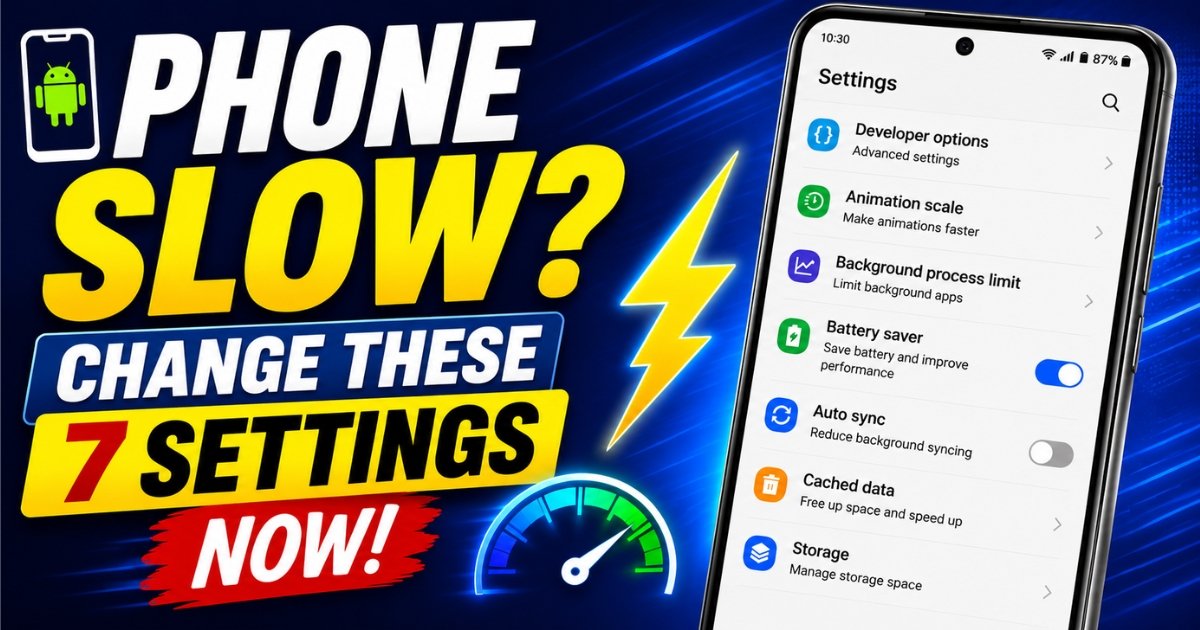
If your Android phone has become slow, freezes often, or takes too long to open apps, you may not need to buy a new phone yet. In many cases, the problem is caused by background activities, full storage, animations, and apps using resources without your notice.
Many Android users struggle with slow phones without knowing that a few simple settings can improve performance. These changes do not require any special technical skill. You can do them directly from your phone settings within a few minutes.

Below are seven hidden Android settings you can change now to make your phone feel faster and smoother.
1. Reduce Animation Speed
Animations make your phone look smooth when opening apps, switching screens, or closing windows. However, they can also make older or low-memory phones feel slower than they really are.
How to change it
Go to Settings
Open About Phone
Tap Build Number several times until Developer Options is enabled
Go back to Settings
Open Developer Options
Find:
Window animation scale
Transition animation scale
Animator duration scale
Set them to 0.5x or turn them off

2. Clear Cached Files
Apps store temporary files called cache. These files can help apps load faster, but when they become too many, they may take up storage and affect performance.
What to do
Go to Settings
Open Storage
Check for cached files or app data
Clear cache where available
You can also clear cache for individual apps by going to Settings → Apps → Select App → Storage → Clear Cache.
3. Disable or Uninstall Unused Apps
Many phones come with apps you rarely use. Some of these apps still run in the background and use memory, battery, and data.
What to do
Go to Settings
Open Apps
Select apps you do not use
Tap Disable or Uninstall
4. Turn On Battery Saver
Battery Saver is not only useful when your battery is low. It can also reduce background processes that may slow down your phone.
What to do
Go to Settings
Open Battery
Turn on Battery Saver
5. Free Up Storage Space
When your phone storage is almost full, the phone may become slow. Android needs free space to manage apps, updates, and temporary system files.
What to delete
Old videos
Duplicate photos
Large downloads
Unused apps
WhatsApp media you no longer need
You can also move important files to Google Drive or an external storage device.
6. Limit Background Processes
Some apps continue working in the background even after you close them. If too many apps are running at the same time, your phone can become slow.
What to do
Go to Settings
Open Developer Options
Find Background process limit
Choose a moderate limit
Avoid choosing very aggressive options if you use many apps regularly, because some apps may reload more often.
7. Turn Off Auto Sync for Unnecessary Apps
Auto Sync allows apps to update emails, contacts, photos, and notifications in the background. This is useful, but not every app needs to sync all the time.
What to do
Go to Settings
Open Accounts or Passwords & Accounts
Check the apps connected to your accounts
Turn off sync for apps you do not need updating constantly
Bonus Tip: Restart Your Phone Regularly
Many people keep their phones on for several weeks without restarting. A simple restart can refresh the system, clear temporary memory issues, and improve performance.
Try restarting your phone at least once every few days, especially if it starts freezing or lagging.
Final Thoughts
A slow phone does not always mean the phone is damaged or too old. Sometimes, it only needs better settings and regular maintenance. Before spending money on a new phone, try these seven fixes first.
If your phone is still slow after trying these settings, you may need to check for software updates, remove heavy apps, or consider whether your device has become too old for your current usage.
If this helped you, share it with someone whose phone is always slow, freezing, or giving problems.
You May Have Missed






It helped very much.
I want to ask… when cache is cleared… what occurs to the app it self… are certain memory or activities cleared??
Thanks for your comment, Jude.
Clearing an app’s cache only removes temporary files the app has stored to help it run faster. It does not delete your account, personal data, photos, messages, or app settings in most cases.
However, the next time you open the app, it may take a little longer to load because it will rebuild the cache. This is different from Clear Storage (or Clear Data), which resets the app and may delete your login information and other locally stored data.